Pedalboard
The parts of the pedalboard in the bottom panel. Choose the board and preset in the top strip, and shape the sound with the pedals below.
The pedalboard is on the Pedalboard tab of the bottom panel. See Bottom panel for how to open the panel.
The top strip#
In the top strip, you choose which board to edit and pick a preset.


1Scope
Chooses whether you edit the song’s board or the track’s dedicated board. Both follow the track under the cursor.
2Use app default
Discards the song’s board and goes back to playing through the app default. It appears only when the song has a board. The sample scores have their own boards, so the button is there when you open one.
3Set as app default
Makes the board you’re looking at the default for every song.
4Preset
Replaces the whole board with a named combination. When you move a knob and the contents change, it shows (edited).
5Save…
Saves the current board as one of your own presets.
6Import…New in 1.1.0
Loads presets from a file. Once you have at least one preset of your own, Export… appears next to it.
7Pedalboard output level
The level of the sound coming out, measured after the overall volume.
8Level and latency readout
Shows the level in dB, followed by the latency. The latency here covers only the output side. Check the total delay from playing to hearing on Latency.
The overall volume knob isn’t on the pedalboard; it’s in Audio Output in the left panel.
Pedals#
Pedals look like real effect pedals, and you use them with knobs and footswitches.
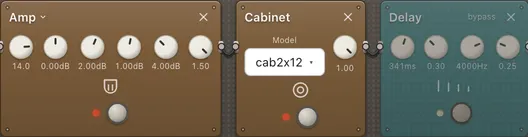
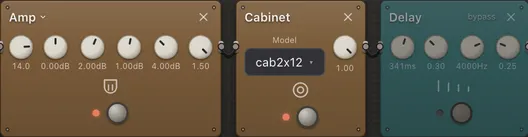
1Model name
Click it to see the models of the same type and switch between them. Hover over it to read a description of the model.
2Remove pedal
Removes the pedal from the board.
3Knobs
Drag up or down to turn a knob. When a knob has focus, you can also turn it with the arrow keys. The value is shown under the knob.
4LED
Lights up while the pedal is active.
5Bypass / Enable
Each press switches the pedal between active and bypassed.
6Model
The type of speaker cabinet. You choose it from a menu rather than with a knob.
7A bypassed pedal
Sound passes straight through this pedal. The LED goes off and “bypass” appears next to the name.
Add a pedal#
Click the Pedal button to the right of the board and choose a type.
The new pedal goes at the right end of the board. The list shows the default model of each type. To use a different model, add the pedal and then click its model name to switch. Pedal list lists the pedals available.
Reorder pedals#
Grab the body of a pedal and drag it sideways to change the order.
Sound passes through from left to right, so the order changes the sound. The cables between pedals are decoration; the order is simply the order on the board. Releasing outside the board leaves the order unchanged.
The right-click menu#
Right-click a pedal for a menu to toggle bypass or remove it.
Every pedal edit can be undone and appears in the edit history. Successive moves of the same knob are merged into one edit.
When you can’t edit#
While a track without a dedicated board is selected, the board is dimmed and can’t be edited.
The top strip shows which board the track is playing through instead of the preset. Song and track boards explains how to make it editable.