Connect an AI client
Turn on the MCP server on the Integration tab of the settings, then connect your AI client. Claude Desktop only needs the extension that Tonograph saves for it.
Turn on the server#
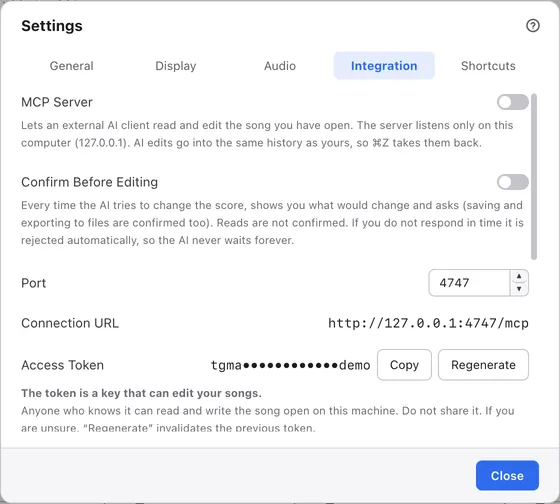
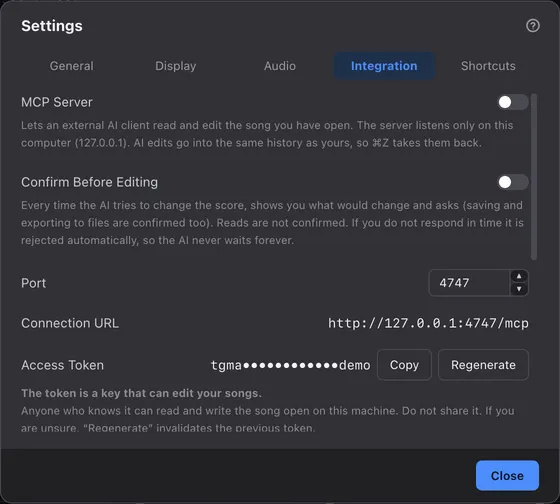
On the Integration tab of , turn on the MCP Server switch.
It’s off at first. Once on, it stays on the next time you start the app, and the server starts automatically. An access token is issued the first time you turn it on.
Connect Claude Desktop#
Choose Claude under Client, then click Save Claude Desktop Extension… to save the extension.
Open the saved file and Claude Desktop shows the install screen for the extension. Install it, paste your Access Token into “Access token”, then turn Tonograph on under Extensions in Claude Desktop’s settings. If you changed the port, set “Port” to match. The extension runs on the Node.js built into Claude Desktop, so you don’t need to install Node.js.
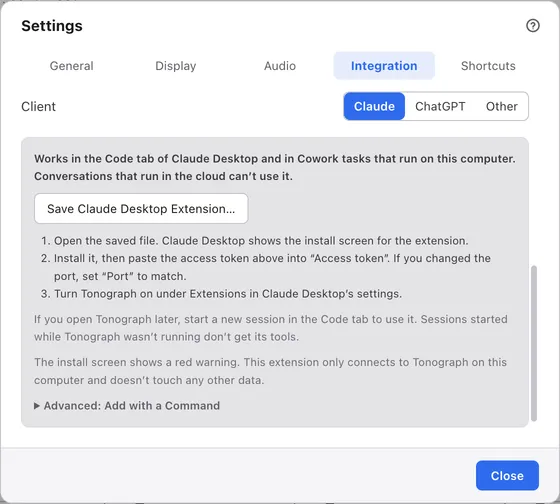
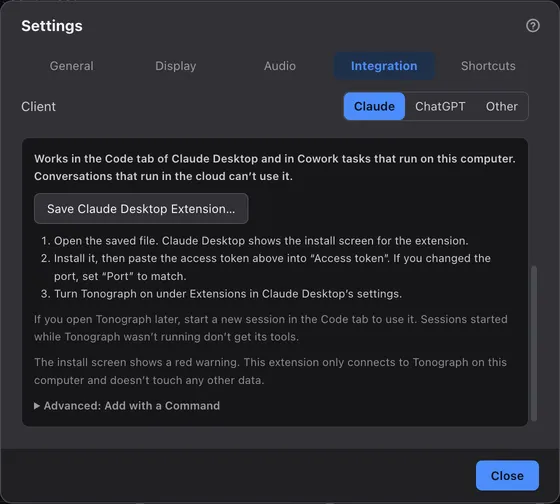
If you open Tonograph later, start a new session in the Code tab to use it. You don’t need to restart Claude Desktop, but sessions started while Tonograph wasn’t running don’t get its tools. If a new session still shows no tools, check that the MCP server is on in Tonograph.
Add Tonograph to Claude Code with a command#
Open Advanced: Add with a Command, click Copy Command, and run the copied command in a terminal.
Tonograph then works in every Claude Code project and in the Code tab of Claude Desktop. The command on screen hides the token, but the copied command contains the real one. It looks like this:
claude mcp add --transport http -s user tonograph http://127.0.0.1:4747/mcp -H "Authorization: Bearer <access token>"Connect ChatGPT#
Choose ChatGPT under Client, click Copy Settings, and paste the copied settings at the end of .codex/config.toml in your home folder.
Create the file if it doesn’t exist. If it already has a [mcp_servers.tonograph] section, replace that section. Then quit ChatGPT and open it again. Tonograph works in both chats and Codex threads in the ChatGPT desktop app. Codex CLI reads the same file, so Codex in a terminal can use it too. The settings on screen hide the token, but the copied settings contain the real one. They look like this:
[mcp_servers.tonograph]
url = "http://127.0.0.1:4747/mcp"
http_headers = { Authorization = "Bearer <access token>" }ChatGPT on the web and on phones connects from OpenAI’s cloud, so it can’t reach Tonograph on this computer.
Other clients#
Choose Other under Client, then enter the Connection URL and Access Token in your client’s settings for an HTTP MCP server.
Every client connects to http://127.0.0.1:<port>/mcp with an Authorization: Bearer <token> header, but each one writes it differently. The table below follows each vendor’s documentation as of October 2026. We haven’t tried them with Tonograph yet.
| Client | Where | How |
|---|---|---|
| Cursor | mcpServers in ~/.cursor/mcp.json |
url and headers, without type |
| VS Code (GitHub Copilot) | The user mcp.json (open it with the “MCP: Open User Configuration” command) |
The top-level key is servers, with type: "http", url and headers |
| Gemini CLI | mcpServers in ~/.gemini/settings.json |
httpUrl and headers (url is treated as SSE) |
Connect Claude Desktop without the extension#
If you can’t install extensions, for example on a computer managed by your workplace, add Tonograph to Claude Desktop’s claude_desktop_config.json through mcp-remote.
This needs Node.js. Edit the file only while Claude Desktop is quit, then open Claude Desktop. While it runs, Claude Desktop rewrites this file from what it remembers, so changes made in the meantime are undone. The same applies when you remove this entry after switching to the extension. With both the extension and this entry, the same tools appear twice. Claude Desktop can’t see a Node.js installed with nvm, so write the absolute path of npx in command and add the Node.js folder to PATH in env.
{
  "mcpServers": {
    "tonograph": {
      "command": "npx",
      "args": ["-y", "mcp-remote", "http://127.0.0.1:4747/mcp", "--header", "Authorization:${TONOGRAPH_AUTH}"],
      "env": { "TONOGRAPH_AUTH": "Bearer <access token>" }
    }
  }
}
Clients that can’t connect#
Conversations on claude.ai, ChatGPT on the web and custom connectors connect from the provider’s cloud, so they can’t reach the server on this computer.
We don’t explain how to expose the server with a tunnel: one token would open editing your songs to the internet.
Connection URL#
Connection URL is the address your AI client connects to.
The URL is shown with the configured port even while the server is stopped.
Port#
Port is the number the server listens on for connections.
You usually don’t need to change it. A new value is kept the next time you start the app. Changing it while the server is running restarts the server on the new port, so update your AI client too. For the Claude Desktop extension, that’s the “Port” field in the extension’s settings.
Access token#
Access Token is the key your AI client uses to connect to the server.
It’s partly hidden on screen. Copy copies it. Regenerate issues a new token, after which the old one no longer connects; paste the new token into your AI client. For the Claude Desktop extension, open Tonograph under Extensions in Claude Desktop’s settings and paste it into “Access token”.