Integration
Settings for the MCP server that connects AI clients.
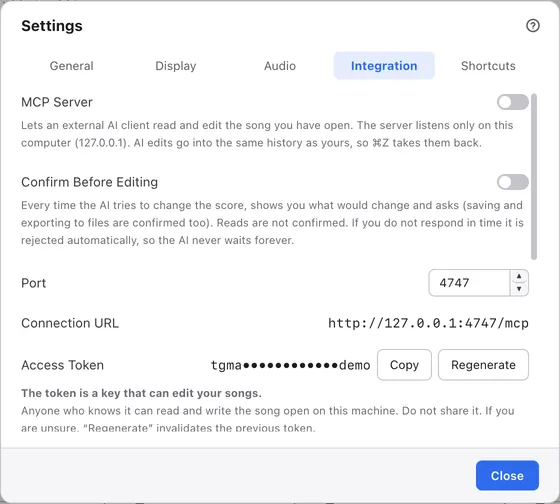
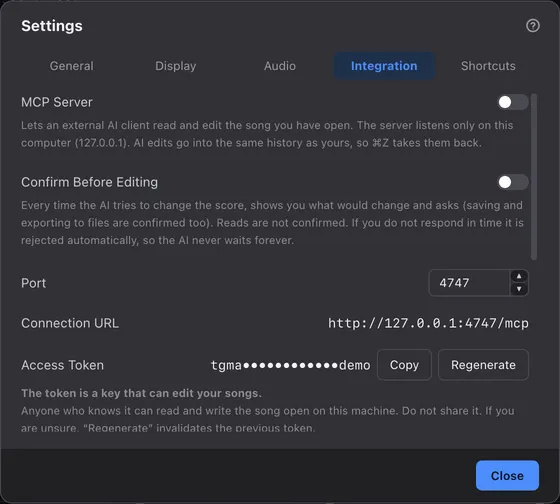
1Tabs
Switch between kinds of settings.
2MCP Server
Lets external AI clients read and write the song you have open. It’s off at first. See Connect an AI client.
3Confirm Before Editing
Checks what AI will change before it’s applied. It’s off at first. See Approval mode.
4Port
The number the server listens on. See Connect an AI client.
5Connection URL
The address AI clients connect to.
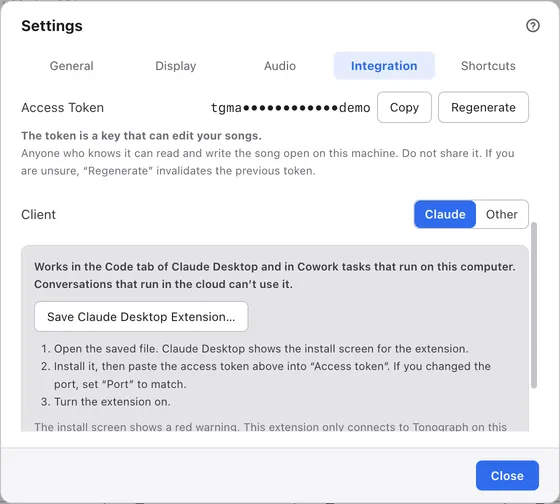
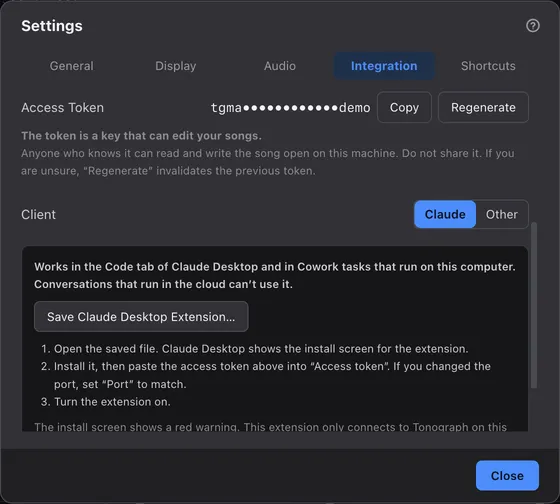
1Access Token
The key AI clients use to connect. It’s partly hidden on screen. See Connect an AI client.
2Client
Choose the AI client you use, and the section below shows how to connect it: Claude or Other.
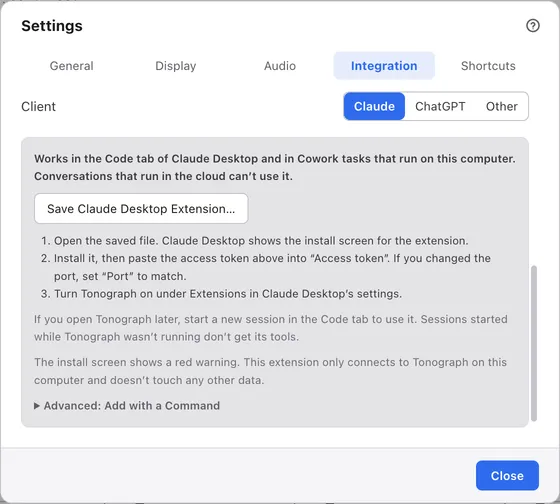
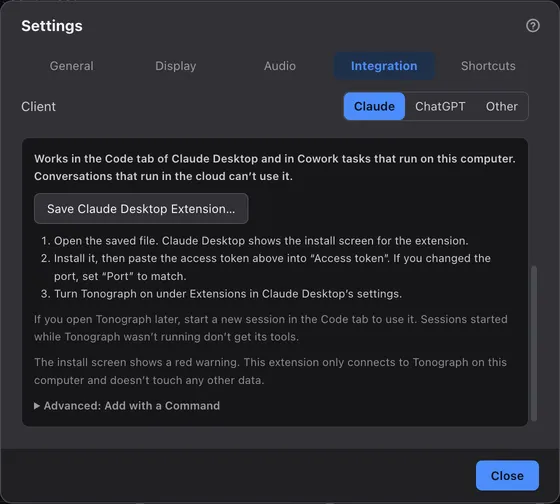
1Where it works
The extension works in the Code tab of Claude Desktop and in Cowork tasks that run on this computer, not in conversations that run in the cloud.
2Save Claude Desktop Extension…
Saves the extension to install in Claude Desktop. See Connect an AI client.
3Steps
What to do in Claude Desktop after you open the saved file.
4Advanced: Add with a Command
Shows the command that adds Tonograph to Claude Code. See Connect an AI client.