Add tracks
Add a track by choosing the kind of instrument, then reorder or delete tracks. Set the name, colour and sound in the track properties.
Add a track#
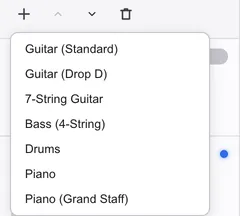
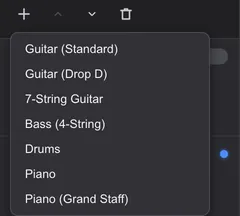
Click + in the left panel and choose the kind of instrument to add a track.
From the menus, choose it under Add Track in the menu. You can choose from:
- Guitar (Standard), Guitar (Drop D), 7-String Guitar
- Bass (4-String)
- Drums
- Piano, Piano (Grand Staff)
The new track goes at the end of the list and is filled with rests for as many bars as the song has. The cursor moves to bar 1 of the new track. A track’s kind (strings, keyboard or drums) can’t be changed later.
Reorder tracks#
Drag a track’s row up or down to change the order.
The arrow buttons in the left panel also move the track under the cursor one step at a time. From the menus, use and . A grand-staff piano moves its upper and lower staves together.
Delete a track#
Click the bin in the left panel; after you confirm, the track under the cursor is deleted.
You can also delete from the menu you get by right-clicking a row, or with . A deleted track comes back with ⌘ZCtrl+Z. You can’t delete the only track. A grand-staff piano deletes both staves together.
Change the name, colour and sound#
Double-click a track’s row to open the Track Properties… dialog.
You can also open it with . Here you change Name, Color, Sound (GM) and Volume. Guitar and bass tracks also have Tuning and Capo here.
Each change goes into the song at once and can be undone on its own. The colour is used for the marks in the left panel and inspector; it doesn’t change the colour of the score. The same settings are also on the Track tab of the inspector.