Left panel
Switch between the track list and the edit history. At the bottom you adjust the audio coming in and going out.
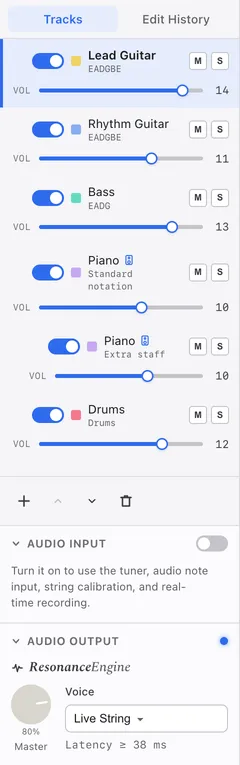
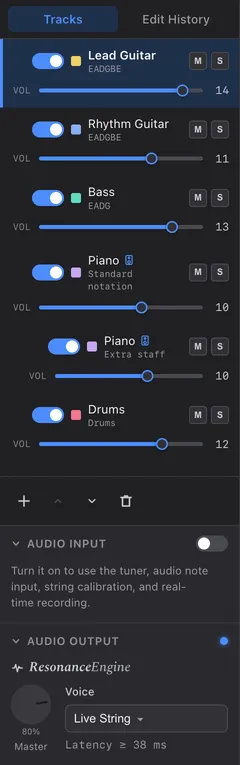
1Tracks / Edit History
Switches between the track list and the list of edits so far.
2Track row
Click to move the cursor to that track. Double-click to open the track’s properties, and drag to reorder. The tuning appears under the name.
3Show in multi-track view
When several tracks are drawn together, chooses whether this track is included in the score.
4Mute / Solo
M silences this track, and S plays only this track. You can switch them during playback.
5Volume
The track’s volume. Moving it during playback changes the sound straight away, and the value is written to the song when playback stops.
6Track actions
+ adds a track, the arrows reorder, and the bin deletes the track with the cursor. Pressing + lets you choose the kind of instrument.
7Audio InputNew in 1.1.0
Turn it on with the switch in its heading when you connect a guitar. Once it’s on, it shows the device in use, the input level and a switch for playing your guitar through the pedalboard. The picture shows it turned off, with only a note about the features that use it. See Input settings.
8Audio Output
Sets the overall Resonance Engine volume and chooses the sound source. The delay before sound is heard is shown here too. How long it is depends on Audio buffer on the Audio tab of , and a change takes effect the next time you start the app.
Click the heading of Audio Input or Audio Output to collapse it. Whether each one is open or collapsed is kept the next time you start the app. If you’ve never opened or collapsed them, Audio Output starts collapsed when the window is short.