Input settings
Connect an audio interface or microphone to Tonograph, and choose the input and its level.
Turn on audio input#
Turn on the switch in the heading of Audio Input in the left panel.
Use audio input on the Audio tab of is the same switch. Every feature in this chapter works only while this switch is on. Besides the tuner and playing through the pedalboard, that includes string calibration, audio note input and real-time recording. It’s off at first, and your choice is kept the next time you start the app.
When you turn it on, your operating system asks for permission to use the microphone. Once allowed, Tonograph takes the guitar’s sound as it is. Sound is processed only on this computer and is never saved or sent anywhere.
Audio input in the left panel#
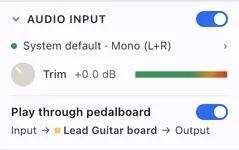
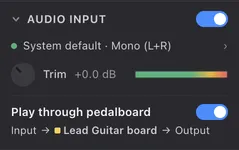
With audio input on, Audio Input in the left panel shows the device in use, the input level and the switch for playing through the pedalboard.
1Use audio input
Turns audio input on or off. While it’s off, the section only shows which features it’s used for.
2Input device
The device and channel in use. Click it to open the Audio tab of the settings. The dot on the left is green while the input is in use, grey while it isn’t, and red if the input couldn’t be opened.
3Trim
A knob that sets how loud the incoming sound is, and a meter for the incoming sound. The knob’s value is shown in dB.
4Play through pedalboard
Turn it on to play your connected guitar through the pedalboard. The line below shows the signal path: the sound goes through the board of the track under the cursor. See Play through the pedalboard.
Click the heading to collapse the section. While it’s collapsed and audio input is on, a meter appears in the heading. Whether it’s open or collapsed is kept the next time you start the app.
Choose the input device and channel#
Choose the device your guitar is connected to with Input device on the Audio tab of the settings.
It starts at System default. After reconnecting a device, click Refresh to update the list. You can’t choose while input is off.
For Input channel, choose Mono (L+R), Left or Right. It starts at Mono (L+R). If your guitar is plugged into only one input of an audio interface, choosing that side keeps the level from dropping.
Set the input level#
Set how loud the incoming sound is with the Trim knob in Audio Input in the left panel.
The knob and meter only appear while audio input is on. The meter moves while a feature such as the tuner or playing through the pedalboard is using the input. Set it so that hard picking doesn’t push the meter to its end. It starts at +0.0 dB and is kept the next time you start the app.
Reference pitch and low instruments#
Tuner reference (A4) sets which frequency is read as A.
It starts at 440 Hz. Besides the tuner, this value is also used when audio note input, string calibration and real-time recording read pitches.
Tuner range can usually stay at Guitar (down to 43 Hz). To read bass notes, including E1 on a 4-string bass, choose Extended low (bass). It responds slightly more slowly.
If the input doesn’t work#
When the input can’t be opened, the reason appears in Audio Input in the left panel, in the settings and inside the dialog you’re using.
The device may fail to open while another app is using it. If it doesn’t respond, check the device and your operating system’s sound settings, then try again.