Cursor and selection
How to move the cursor that marks where you edit, and how to select several beats at once.
Move the cursor#
→Right and ←Left move one beat at a time, and ↑Up and ↓Down move one string at a time.
The cursor points at one beat and one string. It moves across barlines without stopping. Click the score to move to the beat and string you clicked.
Jump to bars and song ends#
To move bar by bar, use ⇥Tab and ⇧⇥Shift+Tab.
⌘←Ctrl+Left goes to the start of the current bar, and ⌘→Ctrl+Right to the start of the next bar. Jump to the start and end of the song with HomeHome and EndEnd.
Select a range#
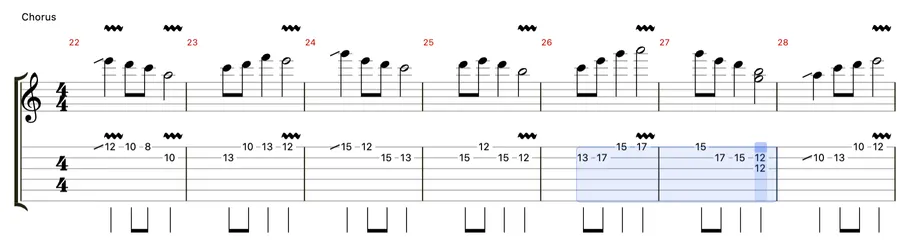
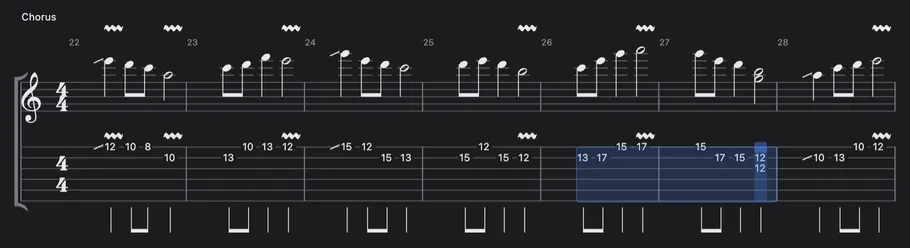
Drag across the score, or hold Shift and press the left or right arrow key, to select several beats.
Shift-clicking the score also extends the range from where you are. Shift works with the keys that jump to bar starts and song ends too.
The selected range appears in the status bar as its starting and ending bar and beat.
What a range includes#
A range stays within one voice of one track, and includes every note on the selected beats.
Strings don’t matter, so every note of a chord is included. Techniques, note values, deleting and copying apply to the whole range. Typing a fret applies only to the beat with the cursor.
Clear the selection#
Press an arrow key or click the score to clear the range and go back to a single cursor.