Play through the pedalboardNew in 1.1.0
Play your guitar through the pedalboard of the track under the cursor, and play along with the song.
Turn it on#
Turn on the Play through pedalboard switch in Audio Input in the left panel.
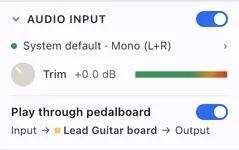
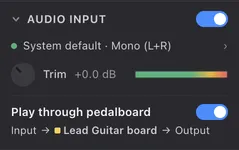
You can also toggle it with . The switch appears in the section only while audio input is on. If you choose the menu item while audio input is off, the Audio tab of the settings opens instead. If the input couldn’t be opened, the switch can’t be used. The switch is off again the next time you start the app.
Which board it goes through#
Your guitar plays through the pedalboard of the track under the cursor.
The line under the switch names the track whose board the sound goes through. Move the cursor to another track and the board switches at once, without a break in the sound. A connected guitar’s sound has already been through its pickups, so it skips the instrument resonance Tonograph adds and goes straight into the pedals. See Pedalboard for how to build a board.
Play along with the song#
Start playback with the switch on to play along with the song.
If the sound is quiet or doesn’t sustain, check the Trim knob and meter first. Input settings explains how to set them.
The feedback check#
If the computer’s built-in microphone is selected, a Feedback warning dialog appears before the switch turns on.
Playing the built-in microphone straight out of the speakers can cause loud feedback. Use headphones or an audio interface. To go ahead anyway, click Turn on anyway.
Delay#
Audio Output in the left panel shows the total delay between playing a note and hearing it.
Latency explains how to reduce it.