String calibrationNew in 1.1.0
Record the tone of each string on your own guitar so that audio note input can tell which string you played.
Why calibrate#
When a pitch can be played in several places, audio note input tells the strings apart by the tone of the note you play.
The tone of each string varies a little from guitar to guitar, depending on its gauge and setup. The tones built in at first match one 6-string guitar. Calibrating your own guitar lets Tonograph use values that fit it. Guitars that don’t have six strings, and basses, choose strings without using tone until they’re calibrated.
Calibrate#
Click Calibrate Strings… in the edit palette, then play each position marked on the fretboard three times.
You can also open it with , or with Calibrate… under String calibration in the settings. It’s available while the cursor is on a guitar or bass track.
There’s one mark per string, and each string has its own position to play. Tonograph tells the strings apart by the pitch you play, so you can go in any order. Notes more than 20 cents out of tune aren’t measured, so tune with the tuner first. On a track with a capo, frets are counted from the capo. While audio input is off, a Turn On Audio Input button appears over the fretboard.
Reading the dialog#
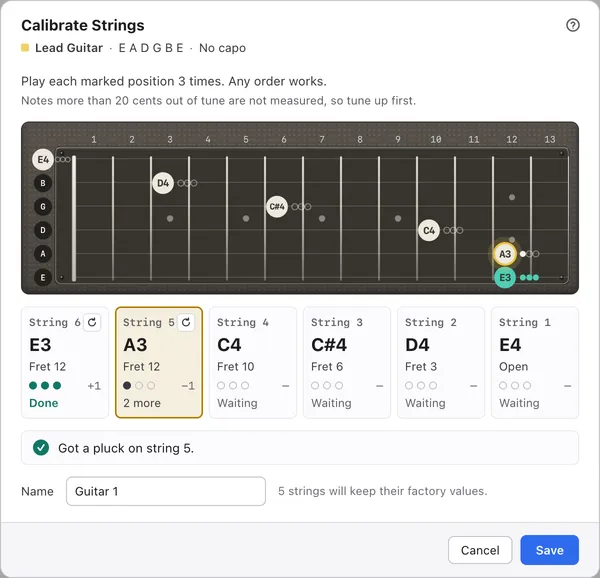
The marks on the fretboard show where to play, and the boxes below show each string’s progress.
1Track
The name, tuning and capo position of the track being measured. Tonograph measures the track the cursor was on when you opened the dialog.
2Positions to play
Each position to play has a mark with the note name. Cream marks are strings still to play, teal marks are done, a red outline means play that string again, and a dashed mark is a string whose tone couldn’t be measured. The mark of the string that’s sounding glows amber, and the dots to its right count the plucks.
3Progress by string
For each string: the note and position to play, the number of plucks, how far off the last note was, and the status. When the status shows Done, that string is done. If the three readings don’t agree, you’re asked to play again. Thin strings can be hard to measure.
4Redo
Clears that string’s plucks so you can measure it again from the start. It appears on any string you’ve played at least once.
5Result
How the last note you played was handled. Notes that aren’t marked or are out of tune aren’t measured, and the reason appears here.
6Name
The name to save the guitar under. To its right is how many strings will keep their factory values.
7Save
Saves the calibration and closes the dialog.
Save#
Once at least one string is done, give it a Name and click Save.
Strings you didn’t measure are saved with their factory values. Guitars without six strings, and basses, can be saved once every string is measured. Closing with Cancel discards the measurements.
After saving, that guitar is selected in Profile in use.
Choose or delete a calibrated guitar#
Choose which guitar to use under String calibration on the Audio tab of .
For Profile in use, choose Automatic (by string count) or one of your calibrated guitars. It starts at Automatic (by string count), which uses a guitar with the same number of strings as the track under the cursor. Calibrated guitars are stored in the app and kept the next time you start it.