Real-time recordingNew in 1.1.0
Play your guitar along with a click and write the rhythm you played into the score.
Open the recording dialog#
Open the recording dialog with Real-Time Recording… in the edit palette or with .
It’s available while the cursor is on a guitar or bass track. Recording starts at the beginning of the bar under the cursor and writes into the voice under the cursor.
Reading the dialog#
Before recording, set the grid, speed and latency correction.
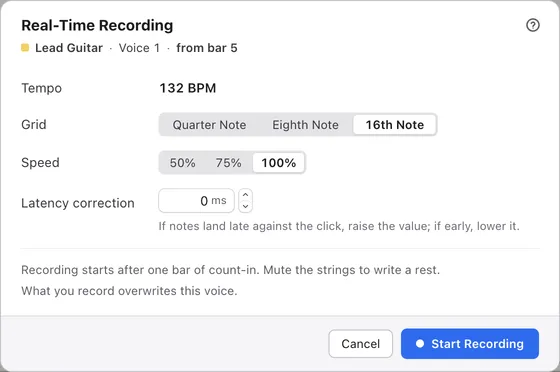
1Where it's written
The track and voice being written, and the bar recording starts from.
2Tempo
The tempo for recording. It comes from the song’s tempo and the speed, and can’t be changed here.
3Grid
How finely the notes you play are lined up. It starts at 16th notes.
4Speed
Lets you record slower. Even at a slower speed, the rhythm is written at the song’s tempo.
5Latency correction
Raise it if notes land late against the click, and lower it if they land early.
6Notes
Explain the count-in and that the recorded range overwrites the existing notes.
7Start Recording
Recording starts after the count-in.
The grid, speed and latency correction are kept the next time you start the app. The delay of your devices is subtracted automatically, so use latency correction only if notes still land off the beat.
Record#
Click Start Recording for a one-bar count-in, after which recording begins.
The click sounds throughout the count-in and the recording. Muting the strings to stop the sound makes a rest. While recording, the dialog shows the current position, the last note heard, and its string and fret.
Stop and write#
Click Stop and Write to write what you recorded into the score.
The recorded range overwrites the notes in that voice. If it runs past the end of the song, bars are added. Writing is a single edit, so one press of ⌘ZCtrl+Z undoes all of it. Discard throws the take away without writing.
Record more#
After writing, click Record More to record from the bar after the range you just wrote.
It continues from what you just wrote, not from the cursor. Triplet and swing rhythms can’t be recorded. Recording can’t start during playback.