Display
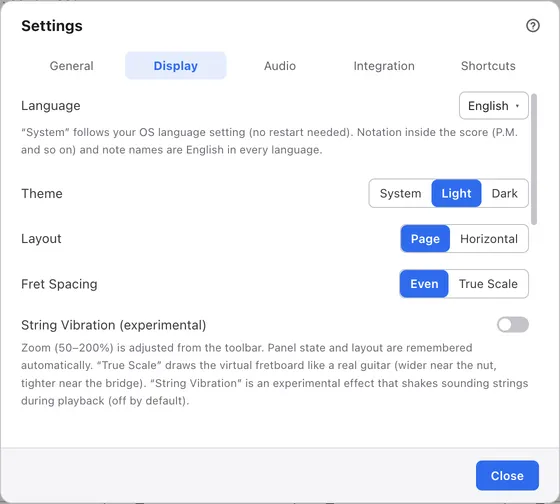
Set the language and colour scheme, the score layout, how the board is drawn, marks on the score and the drum pad layout.
1Tabs
Switch between kinds of settings.
2Language
The app’s language. At first it follows your operating system. See Theme and language.
3Theme
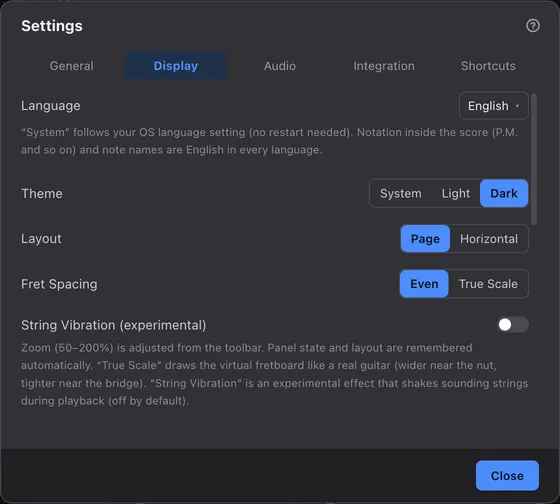
Choose a light or dark colour scheme. At first it follows your operating system’s appearance. See Theme and language.
4Layout
Choose whether the score wraps into pages or runs sideways as one system. It starts at Page. See Zoom and layout.
5Fret Spacing
Choose whether the board draws every fret the same width or like a real neck. It starts at Even. See Boards.
6String Vibration (experimental)
Makes the sounding strings vibrate on the board during playback. It’s off at first.
1Bar Length Warnings
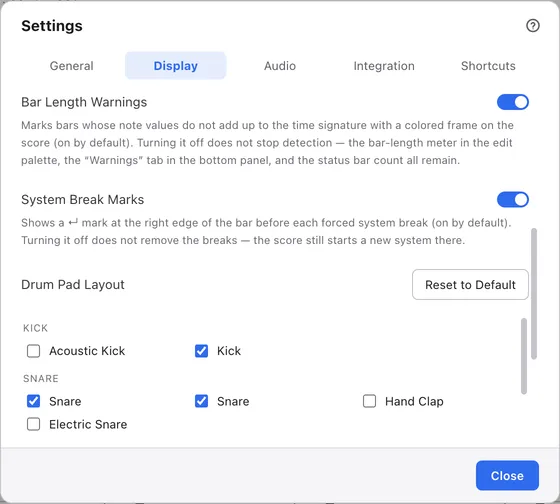
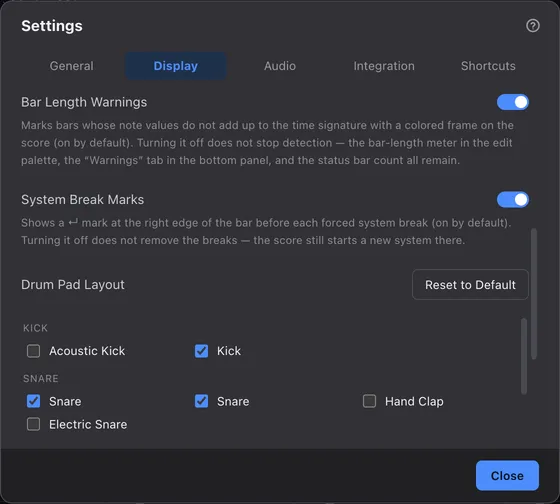
Marks bars whose length doesn’t fit on the score. It’s on at first. Even when it’s off, the warnings tab and the status bar counts still appear. See Matching bar length.
2System Break Marks
Shows a mark where you’ve placed a system break. It’s on at first. See Sections and system breaks.
3Drum Pad Layout
Choose which percussion instruments get drum pads. The layout is shared by every drum track. Reset to Default goes back to the original layout without asking. See Boards.