Adding techniques
Select notes, then add a technique with a button, a key or a menu.
Choose the notes#
A technique applies to the note with the cursor, or to every note in a selected range.
On guitar and bass tracks, the target is the one note on the string with the cursor. On piano and drum tracks, it’s every note on the beat with the cursor. With a range selected, every note on every beat in the range is included.
Add with a button or key#
Press a button in the Edit palette, or the key for that technique.
Press the same button again to remove it. Common techniques have keys, such as PP for palm mute and VV for vibrato. All the keys are listed in Keyboard shortcuts.
Buttons with a ▾ on the right, such as Slide, let you pick the type directly from the ▾.
Add from the menus#
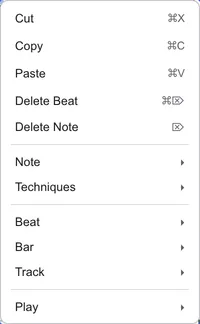
Every technique is listed under Techniques, for example .
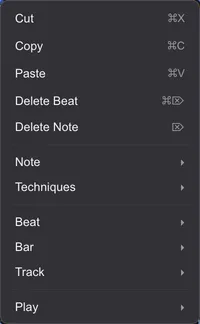
Right-clicking a note in the score shows the same menu. It’s handy for finding a technique whose key you don’t remember.
When only some notes have it#
A button shows as on only when every note in the range has the technique.
If only some notes have it, pressing the button adds it to all of them. If they all have it, pressing the button removes it from all of them.
Techniques on a beat#
Techniques that apply to the whole beat, such as strums and dynamics, are set on the Selection tab of the Inspector.
The Beat section has rows for strum, pick stroke, tremolo picking, Extended Techniques and more. With a range selected, the setting applies to every beat in the range.